The most common mistake is leaving the 1xBet app streaming live match video by default. That single habit drains mobile data within hours. Open the application, switch live streams off, and pause background updates. Those three taps cut consumption far more than any data plan change you could make.

what actually eats your data in 1xBet
| Source |
Where to switch it off |
Data effect |
| Live match streams |
Broadcast icon inside the match screen |
Highest consumption by far |
| Background refresh |
Phone settings, application list |
Moderate daily drain |
| Odds and market updates |
1xBet settings, data saving mode |
Low but constant |
| Notifications |
Phone notification settings |
Small, easy to reduce |
The table shows where each megabyte goes when you open the application on a normal match day. Live video sits at the top because a stream can pull far more data than every text market combined. Turning streams off while browsing keeps the bet slip responsive. You still see all lines, odds and markets without spending a single kilobyte on video.
turning off live video and background refresh
Inside any match screen the broadcast icon sits beside the scoreline. Tapping it starts the stream; tapping again stops it within a couple of seconds. Keep it off whenever you are checking odds rather than watching. The 1xBet match view remains fully usable without the video pane, and your data plan notices immediately.
Background refresh is a phone-level setting rather than an application toggle. Open the phone settings, find the application entry, and switch off background activity. On Android this sits under Mobile data and Wi-Fi; on iOS under Background App Refresh. The application will then download updates only when you open it yourself.
- Open Settings, choose Apps, then locate 1xBet in the list.
- Tap Mobile data and Wi-Fi, then switch off Allow background data usage.
- Return to the application and check the broadcast icon stays grey.
- Repeat the check after any application update, since toggles sometimes reset.
using data saving mode and notifications wisely
1xBet includes a data saving option inside its own settings menu. Enable it and the application loads text markets first, postponing any image-heavy banner. Odds refresh on demand instead of on a constant timer. Combined with streams off, this setting keeps a full evening of browsing inside a very small data budget.
Notifications are the quieter drain, and they arrive even when the application is closed. Each push carries a short payload, but dozens per match day add up. Open the phone notification settings, find 1xBet, and keep only bet settlement alerts. If you are concerned about spending patterns rather than data, GambleAware resources cover that side of things.
Watch the first minute after enabling data saving mode. On a mid-range Android phone the application normally finishes its market refresh in roughly four to six seconds over 4G. That pause is normal and it saves real megabytes every session.
What to turn off in the app settings
The application carries several options that quietly move data in the background. Opening Settings and working down the list takes a couple of minutes. Switch off auto-refresh for live scores first, because those constant score updates are the biggest daily drain. Then reduce the number of push notifications you allow, since each one travels over your mobile connection.
- Set live score updates to manual refresh in the main menu.
- Limit push notifications to bet settlement only in Settings.
- Turn off high-quality match graphics on the live stream screen.
- Prefer Wi-Fi for the first 1xBet install and big updates.
Turning off live stream quality settings inside the 1xBet video player helps the most on 4G. Choose the lowest resolution before the stream starts rather than adjusting it mid-match. Those small changes together cut the app’s monthly data figure noticeably.
How your account pages affect mobile data
The account area of 1xBet loads photos, receipts and statement rows that refresh often. Opening the balance screen repeatedly pulls fresh numbers from the server. Checking a bet slip once, then leaving it open, costs far less data than reopening it. The same applies to the transaction history page, which downloads rows every time you visit it.
Verifying your identity or uploading documents is a one-off cost on mobile data. It takes a few seconds to send a photo, but a large file can take a minute or two on Wi-Fi. Do that step at home before travelling. Staying logged in on a trusted device also avoids repeated certificate checks.
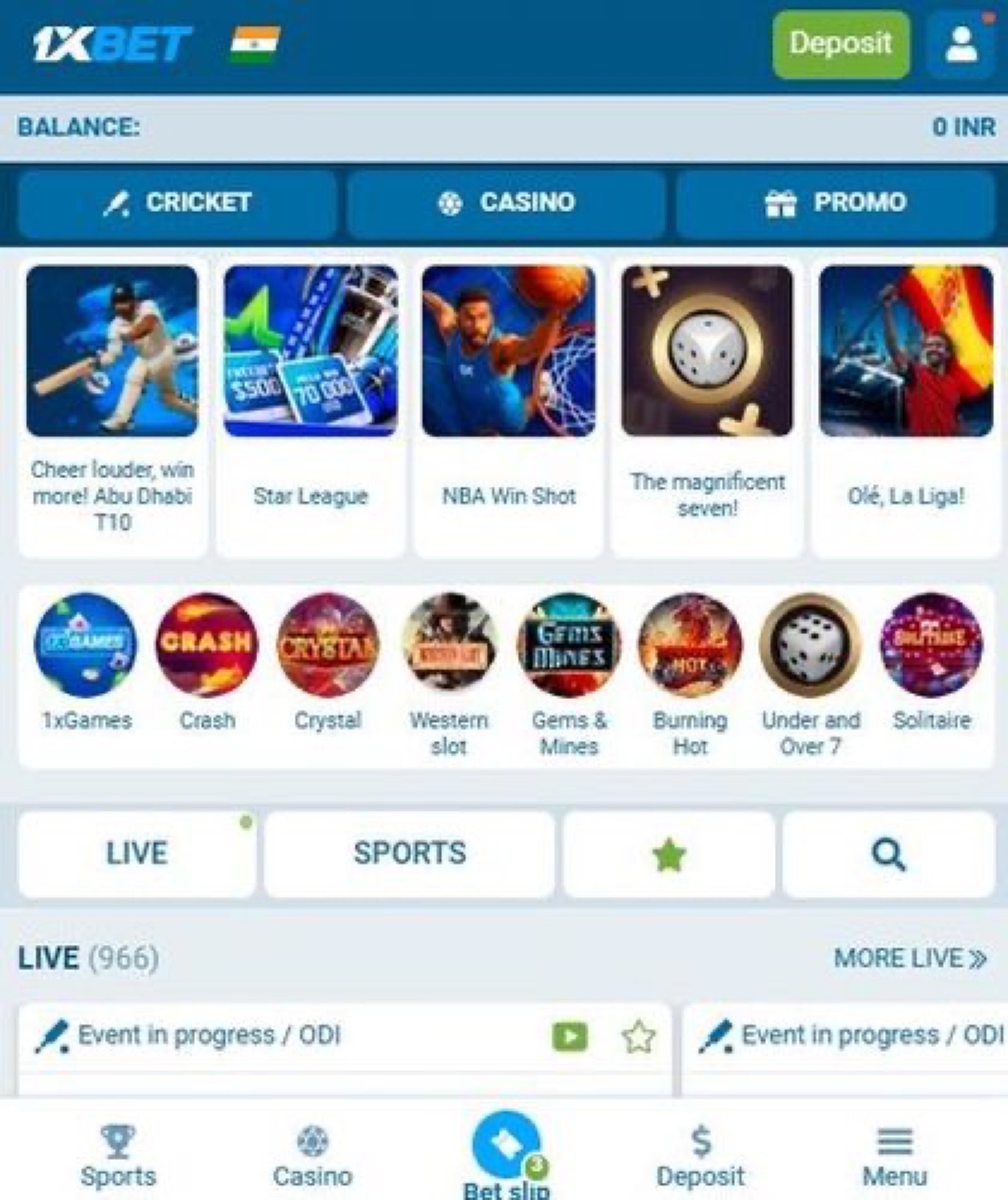
One more habit worth noting: opening the 1xBet sportsbook home page pulls league icons and thumbnails. Scrolling through the same list twice loads the same images again. If you plan to place an accumulator later, note the event IDs and close the tab.
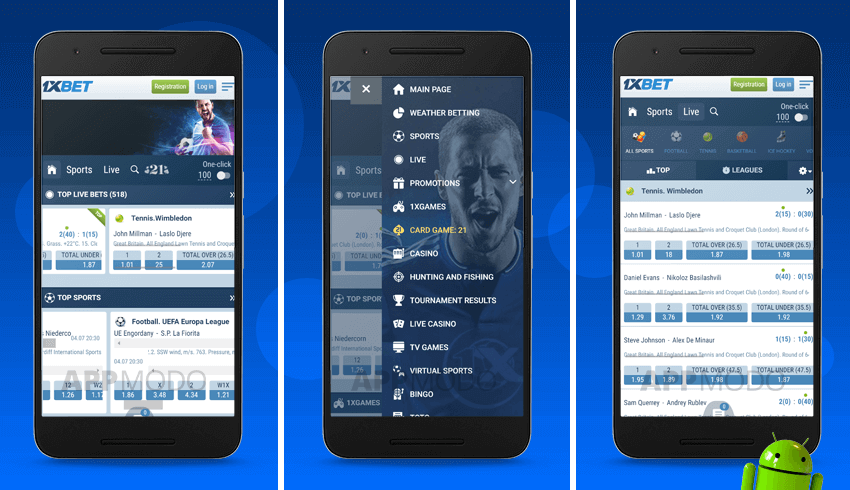
Where a quick comparison helps, the 1xbet app supporting android devices page lists which menus sit where. Use that layout reference to reach the bet slip directly rather than browsing category by category. Fewer taps mean fewer data requests overall.
Network and device settings that make a difference
Your phone’s own settings decide how much 1xBet sends over mobile data. Background app refresh lets the application check odds when you are not using it. Turning that off keeps 1xBet quiet until you open it yourself. Android users find the control under Settings, then Apps, then 1xBet, then Mobile data.
Data saver mode in the Android settings blocks 1xBet from fetching anything on a metered connection. The option sits in Network and internet, then Data saver. On iPhone, Low Data Mode lives in Settings, then Cellular, then Mobile Data. Toggle it before a long session to keep the total down.
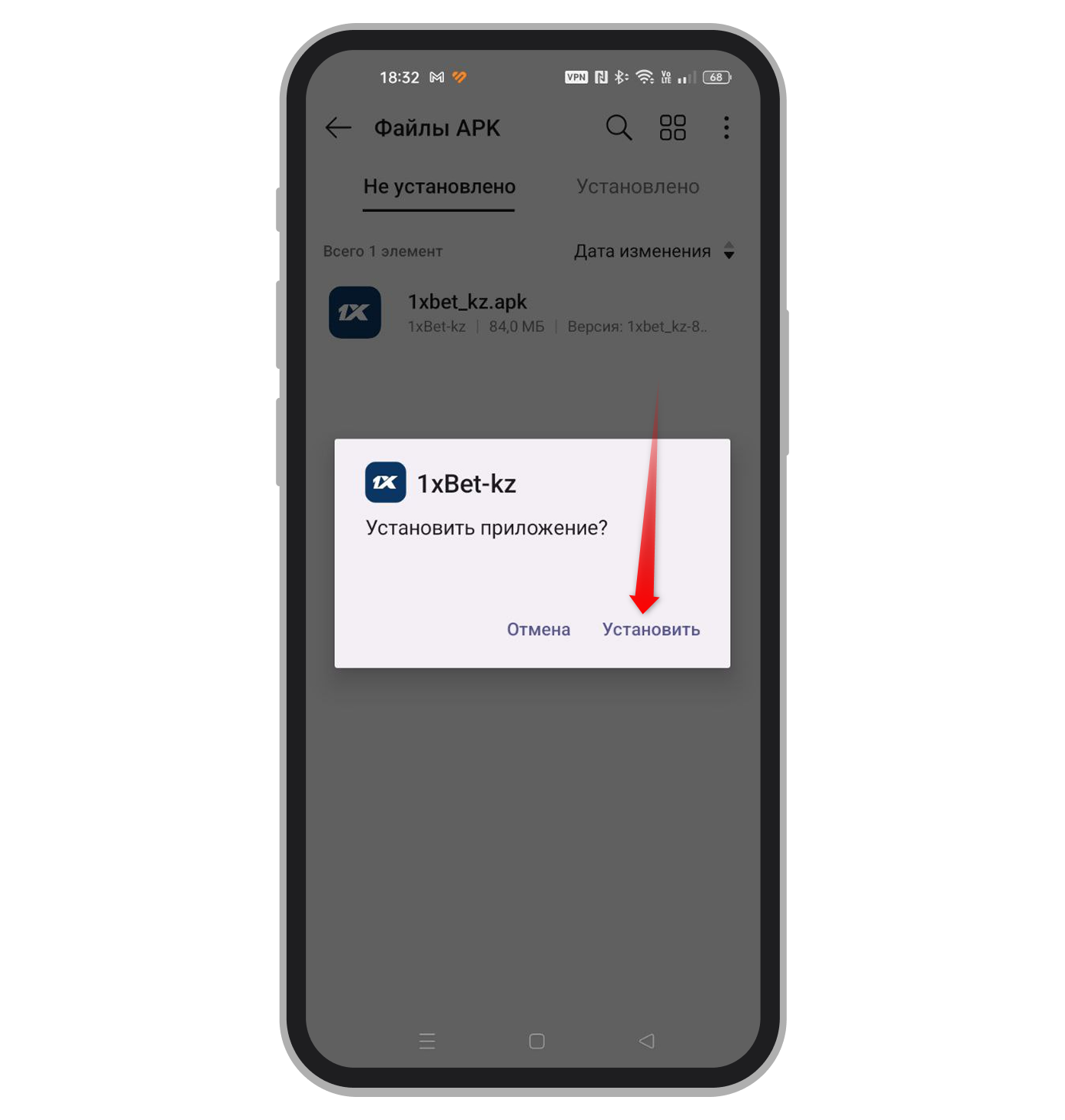
On first install, the package installer prompt asks you to confirm the download in the notification shade. Waiting for Wi-Fi at that point saves several megabytes in one go. Later permission requests, such as the Install unknown apps toggle, do not use data themselves. Still, complete them at home so nothing interrupts a live bet.
Switching the app’s language or theme in 1xBet forces a reload of the interface. Do that on Wi-Fi. Set everything once and the 1xBet session stays lighter on mobile afterwards.
A checklist to run through
Use this list before your next session. Each step takes under a minute.
- Open Settings in the app and turn off automatic live score refresh.
- Reduce push notifications to bet settlement only in the notification menu.
- Set the live video player to the lowest quality and save it.
- Close the bet slip page once your selection is placed.
- Enable data saver in Android Settings, then Network and internet.
- Limit the 1xBet background app refresh under Settings, then Apps.
- Defer any document upload for verification until you are on Wi-Fi.
- Keep the application closed when you are not actively betting.
- Reopen only the league you intend to bet on, not the full home page.
- Check your remaining balance once and avoid reopening the page repeatedly.
Mistakes people make here
- Leaving live streams at default high quality for a full match.
- Reopening the bet slip after every added selection.
- Turning off data saver because the app feels slower.
- Uploading verification photos over a mobile connection instead of Wi-Fi.
- Keeping 1xBet running in the background all day.
- Scrolling the home page for entertainment rather than for a bet.
Most of these habits are easy to correct once you know where the settings live. Open the 1xBet menu, walk through the list above and make the changes once. After that, the application stays light on mobile data until you decide otherwise. The result is a longer session on the same monthly allowance, with fewer mid-match surprises from your carrier.

Reduce Data Usage in the 1xBet Mobile App
The most common mistake is leaving the 1xBet app streaming live match video by default. That single habit drains mobile data within hours. Open the application, switch live streams off, and pause background updates. Those three taps cut consumption far more than any data plan change you could make.
what actually eats your data in 1xBet
The table shows where each megabyte goes when you open the application on a normal match day. Live video sits at the top because a stream can pull far more data than every text market combined. Turning streams off while browsing keeps the bet slip responsive. You still see all lines, odds and markets without spending a single kilobyte on video.
turning off live video and background refresh
Inside any match screen the broadcast icon sits beside the scoreline. Tapping it starts the stream; tapping again stops it within a couple of seconds. Keep it off whenever you are checking odds rather than watching. The 1xBet match view remains fully usable without the video pane, and your data plan notices immediately.
Background refresh is a phone-level setting rather than an application toggle. Open the phone settings, find the application entry, and switch off background activity. On Android this sits under Mobile data and Wi-Fi; on iOS under Background App Refresh. The application will then download updates only when you open it yourself.
using data saving mode and notifications wisely
1xBet includes a data saving option inside its own settings menu. Enable it and the application loads text markets first, postponing any image-heavy banner. Odds refresh on demand instead of on a constant timer. Combined with streams off, this setting keeps a full evening of browsing inside a very small data budget.
Notifications are the quieter drain, and they arrive even when the application is closed. Each push carries a short payload, but dozens per match day add up. Open the phone notification settings, find 1xBet, and keep only bet settlement alerts. If you are concerned about spending patterns rather than data, GambleAware resources cover that side of things.
Watch the first minute after enabling data saving mode. On a mid-range Android phone the application normally finishes its market refresh in roughly four to six seconds over 4G. That pause is normal and it saves real megabytes every session.
What to turn off in the app settings
The application carries several options that quietly move data in the background. Opening Settings and working down the list takes a couple of minutes. Switch off auto-refresh for live scores first, because those constant score updates are the biggest daily drain. Then reduce the number of push notifications you allow, since each one travels over your mobile connection.
Turning off live stream quality settings inside the 1xBet video player helps the most on 4G. Choose the lowest resolution before the stream starts rather than adjusting it mid-match. Those small changes together cut the app’s monthly data figure noticeably.
How your account pages affect mobile data
The account area of 1xBet loads photos, receipts and statement rows that refresh often. Opening the balance screen repeatedly pulls fresh numbers from the server. Checking a bet slip once, then leaving it open, costs far less data than reopening it. The same applies to the transaction history page, which downloads rows every time you visit it.
Verifying your identity or uploading documents is a one-off cost on mobile data. It takes a few seconds to send a photo, but a large file can take a minute or two on Wi-Fi. Do that step at home before travelling. Staying logged in on a trusted device also avoids repeated certificate checks.
One more habit worth noting: opening the 1xBet sportsbook home page pulls league icons and thumbnails. Scrolling through the same list twice loads the same images again. If you plan to place an accumulator later, note the event IDs and close the tab.
Where a quick comparison helps, the 1xbet app supporting android devices page lists which menus sit where. Use that layout reference to reach the bet slip directly rather than browsing category by category. Fewer taps mean fewer data requests overall.
Network and device settings that make a difference
Your phone’s own settings decide how much 1xBet sends over mobile data. Background app refresh lets the application check odds when you are not using it. Turning that off keeps 1xBet quiet until you open it yourself. Android users find the control under Settings, then Apps, then 1xBet, then Mobile data.
Data saver mode in the Android settings blocks 1xBet from fetching anything on a metered connection. The option sits in Network and internet, then Data saver. On iPhone, Low Data Mode lives in Settings, then Cellular, then Mobile Data. Toggle it before a long session to keep the total down.
On first install, the package installer prompt asks you to confirm the download in the notification shade. Waiting for Wi-Fi at that point saves several megabytes in one go. Later permission requests, such as the Install unknown apps toggle, do not use data themselves. Still, complete them at home so nothing interrupts a live bet.
Switching the app’s language or theme in 1xBet forces a reload of the interface. Do that on Wi-Fi. Set everything once and the 1xBet session stays lighter on mobile afterwards.
A checklist to run through
Use this list before your next session. Each step takes under a minute.
Mistakes people make here
Most of these habits are easy to correct once you know where the settings live. Open the 1xBet menu, walk through the list above and make the changes once. After that, the application stays light on mobile data until you decide otherwise. The result is a longer session on the same monthly allowance, with fewer mid-match surprises from your carrier.